From Catalog to Brand-Aligned Images
This comprehensive manual walks you through all 16 core tasks of the PromptiQ platform — from ingesting fashion collections and tuning textual gradient descent loops to banking Brand Memory exemplars and training custom LoRA brand models.
Task Index & Quick Jump Navigation
Section I — Pipeline Setup & Optimization
Section II — Brand Architecture & Calibration
Section III — Brand Studio (LoRA Training & Serving)
Section IV — Asset Management & Curation
Section V — Collaboration, Admin & Reference
The 4-Stage PromptiQ Architecture
Understand how PromptiQ transforms raw product photos into a self-learning brand intelligence system.
Asset Ingestion & DNA
Images are securely ingested and distilled into structured Brand DNA capturing house style, palette, and lighting.
Brand Fidelity Calibration
Generates candidate images, benchmarks visual fidelity against catalog standards, and refines prompts autonomously.
Brand DNA Neural Memory
Assets scoring ≥85 bank as approved exemplars, dynamically injecting proven styling vocabularies into future generation cycles.
Private Studio Enclave
Generate studio-grade campaign looks or deploy fine-tuned single-tenant model weights with zero public training risk.
Workspace Setup & Prompt Optimization Pipeline
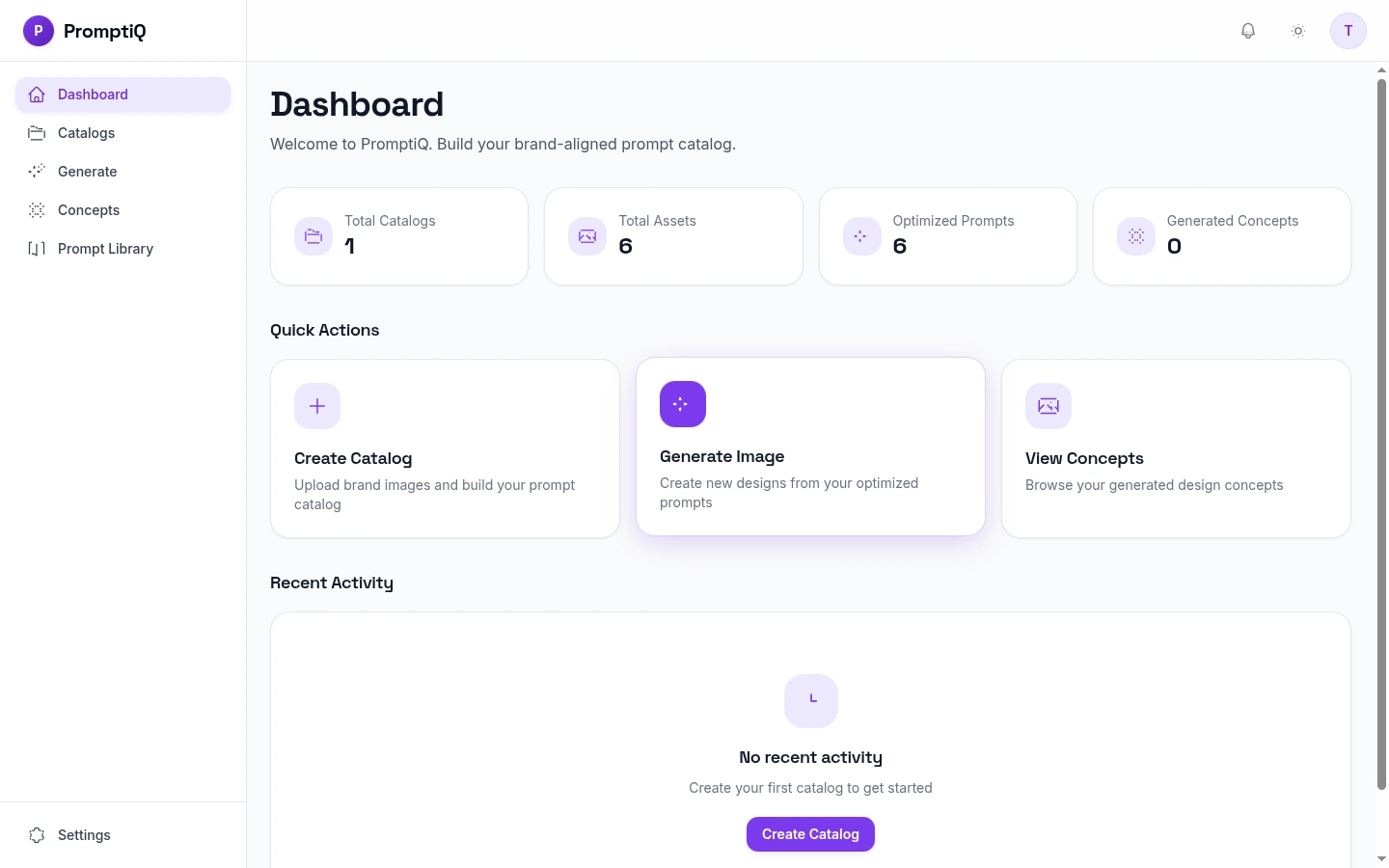
Navigating the Workspace & Dashboard Overview
Primary App Shell • Navigation • Organization MetricsUpon logging in to PromptiQ, the Dashboard serves as your mission control center. It surfaces aggregate brand statistics, active catalog counters, prompt optimization status, and brand model readiness.
Step-by-Step Instructions:
- 1.Access Primary Navigation: Use the persistent left sidebar to switch between
Dashboard,Catalogs,Generate,Concepts,Collections,Prompts, andSettings. - 2.Monitor Workspace KPIs: Review the 4 primary metric cards tracking Total Catalogs, Optimized Prompts, Generated Concepts, and Brand Model status.
- 3.Customize Preferences: Open the top header profile dropdown to toggle between Light, Dark, or System visual themes.
Creating a Catalog & Exploring Sample Data
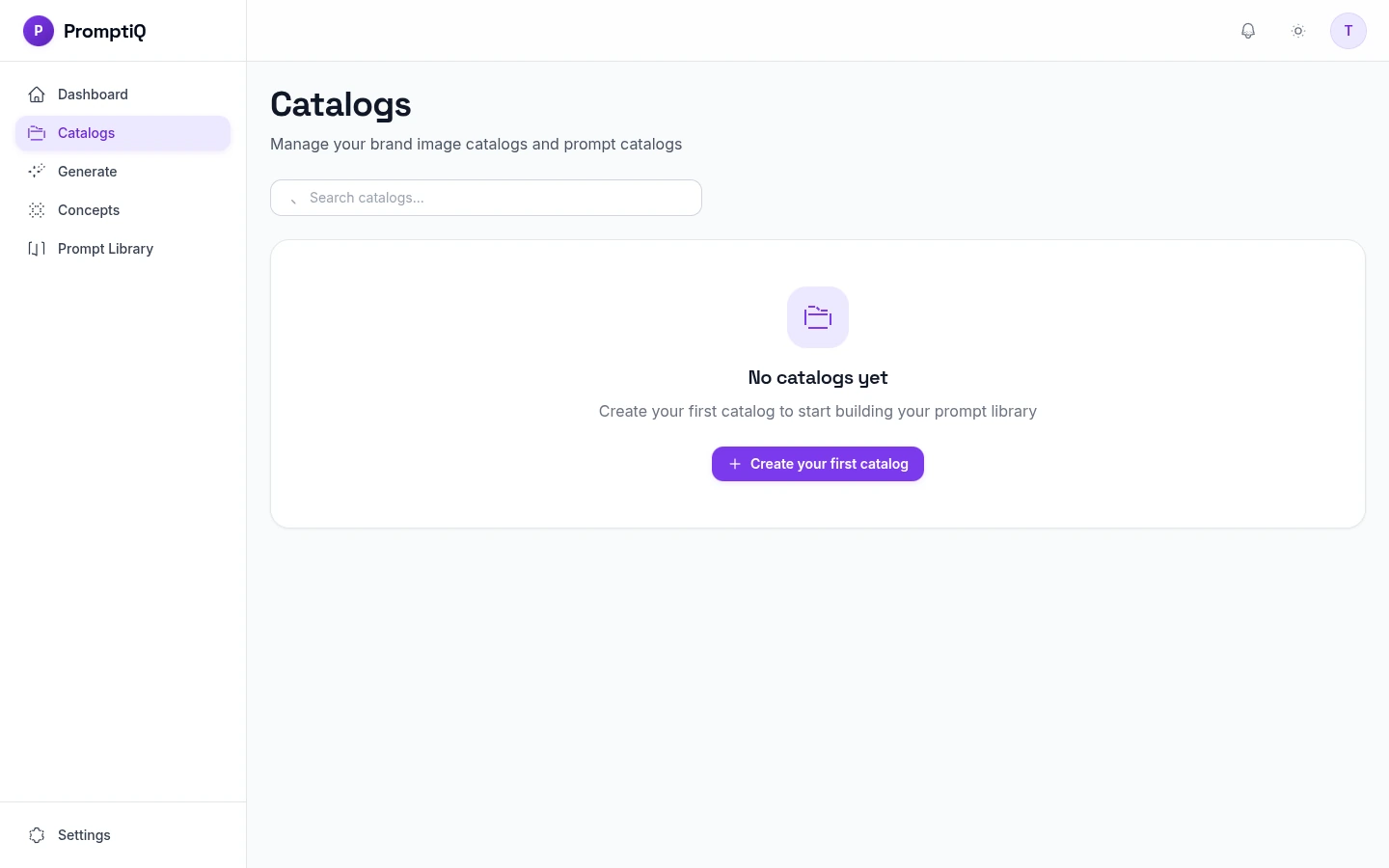
Catalog Management • Costa Sole SS25 Pre-Loaded DataA Catalog groups related product images (e.g., a seasonal drop, product line, or capsule collection). PromptiQ ships pre-seeded with the Costa Sole SS25 Resort Collection sample catalog so you can inspect an 8-look production catalog immediately without uploading files.
Step-by-Step Instructions:
- 1.Navigate to Catalogs: Click Catalogs in the left sidebar.
- 2.Create a New Catalog: Click New Catalog in the top-right corner. Enter a descriptive title (e.g.,
Autumn Winter 2026 Outerwear) and optional collection notes. - 3.Explore Pre-Seeded Sample Data: Click the Costa Sole SS25 catalog to explore 8 fully-calibrated looks (Silk Slip, Linen Seated, Archway, Knit Coord, etc.) with pre-optimized prompts.
Uploading & Managing Product Assets
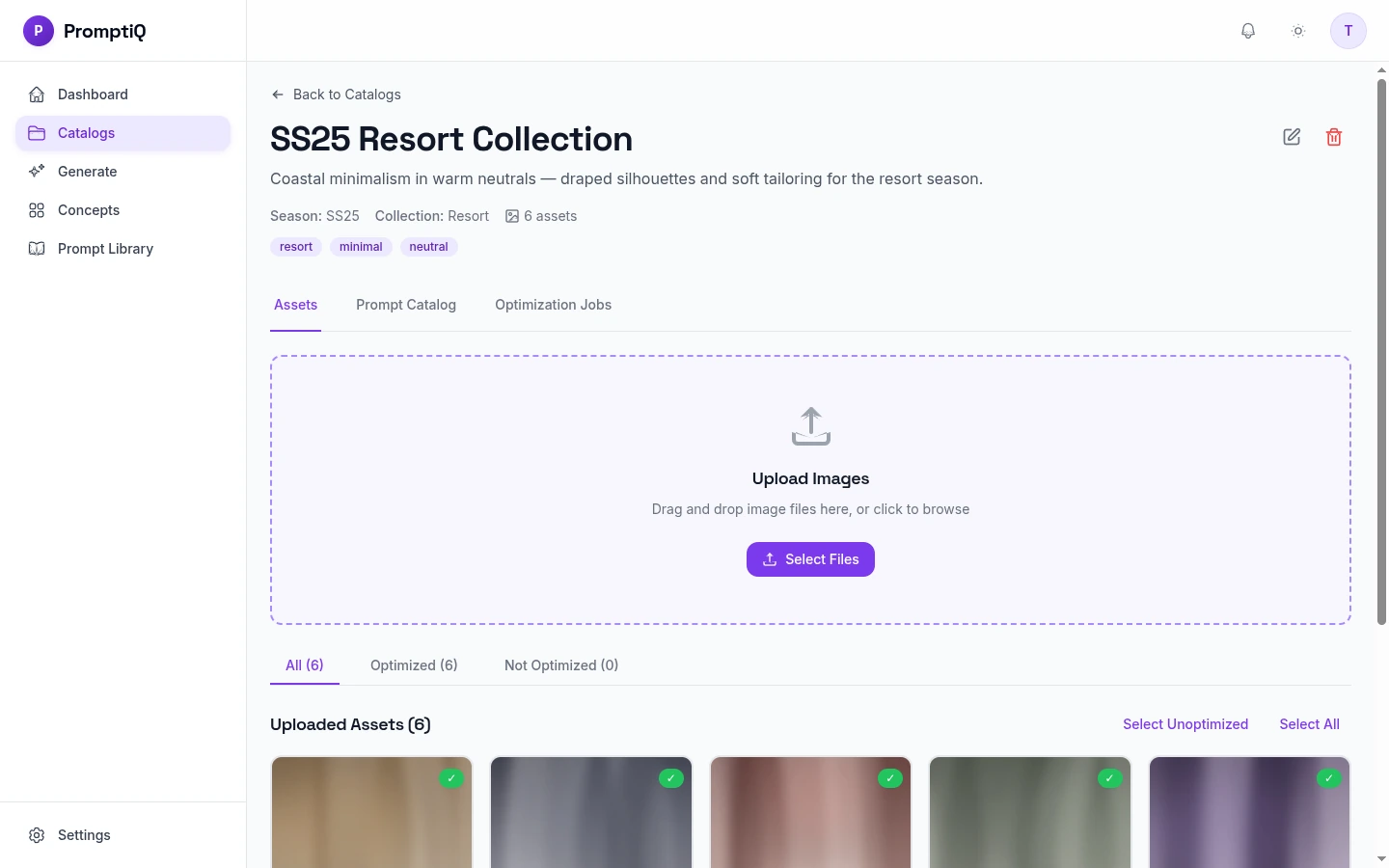
Asset Ingestion • Private Enclave Storage • Brand DNA CalibrationEach uploaded photo becomes an asset that feeds PromptiQ's Brand Fidelity Engine™. When an asset is uploaded, it is securely stored in your private workspace and calibrated against your brand's visual identity.
Step-by-Step Instructions:
- 1.Open Catalog Detail: Select your target catalog from the Catalogs list.
- 2.Upload Images: Drag and drop JPG or PNG files into the upload dropzone (or click to browse). Support up to 100 images per catalog.
- 3.Inspect Processing Status: Each asset appears in the grid with a thumbnail, filename, and initial status (ready for prompt optimization).
Configuring Structured Brand DNA
6-Dimension Profile • Style Directives • Strict Avoid-ListBrand DNA provides the explicit editorial rules and creative boundaries that govern every prompt draft, critique, and refinement pass. Unlike generic prompts, PromptiQ injects this structured schema into the LLM critique loop to enforce brand guidelines programmatically.
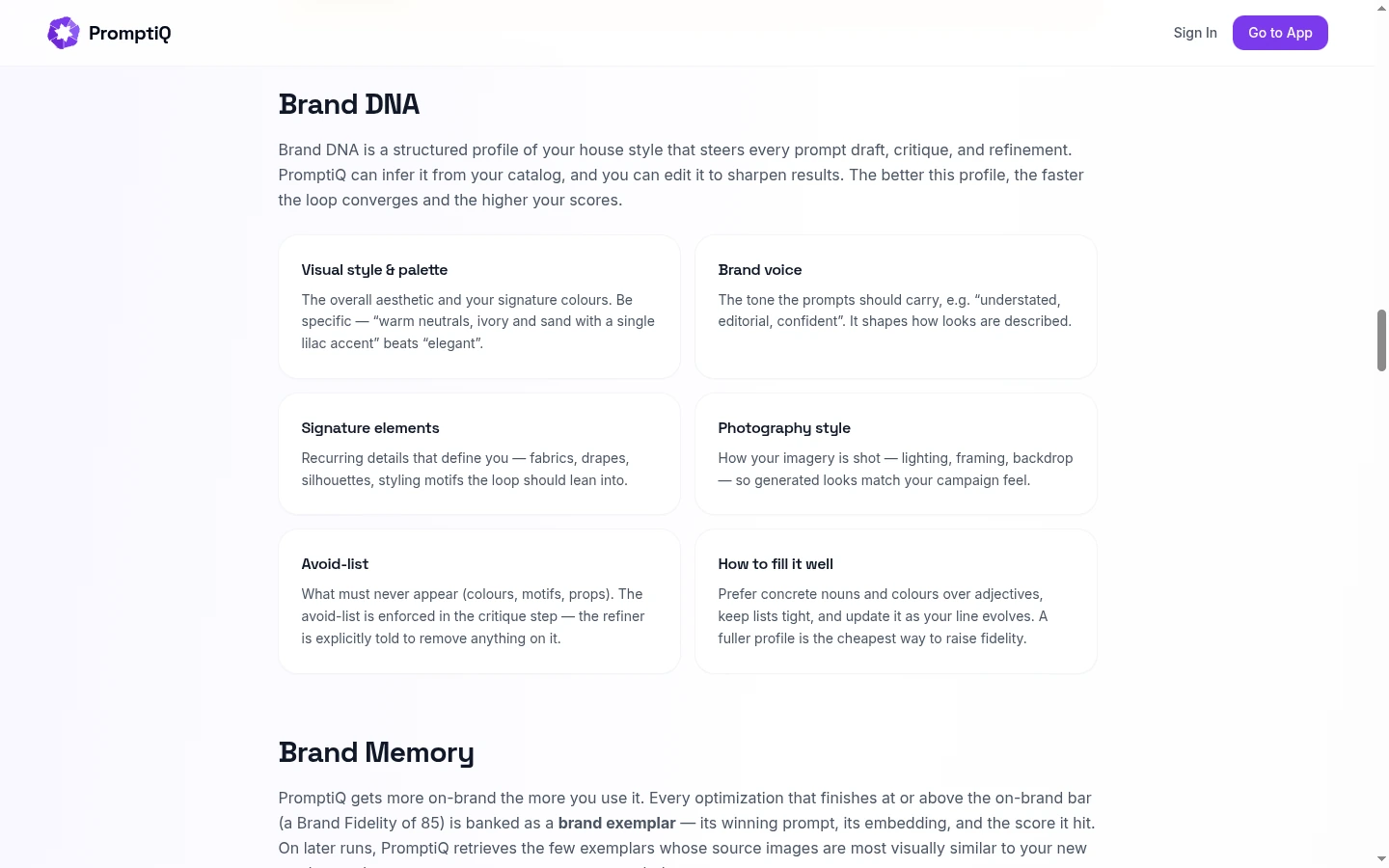
1. Visual Style & Color Palette
Explicit hex/pantone references, material textures, and mood (e.g., 'warm neutrals, ivory, sand, single lilac accent').
2. Brand Voice
Editorial phrasing tone (e.g., 'understated, confident, high-end editorial, precise garment cut descriptions').
3. Signature Elements
Recurring design codes: bias-cut drapery, natural linen slub, architectural lapels, minimalist seams.
4. Photography Style
Lighting and composition rules (e.g., 'soft Mediterranean golden-hour sunlight, medium format 80mm lens feel').
5. Critique Avoid-List
Strictly forbidden elements (e.g., 'harsh direct flash, synthetic sheen, neon highlights, busy logos'). Stripped during TGD critique.
6. Concrete Vocabulary
Use precise fashion nouns ('double-breasted crepe blazer') rather than generic adjectives ('pretty clothes').
Setting Up Prompt Optimization (TGD Loop)
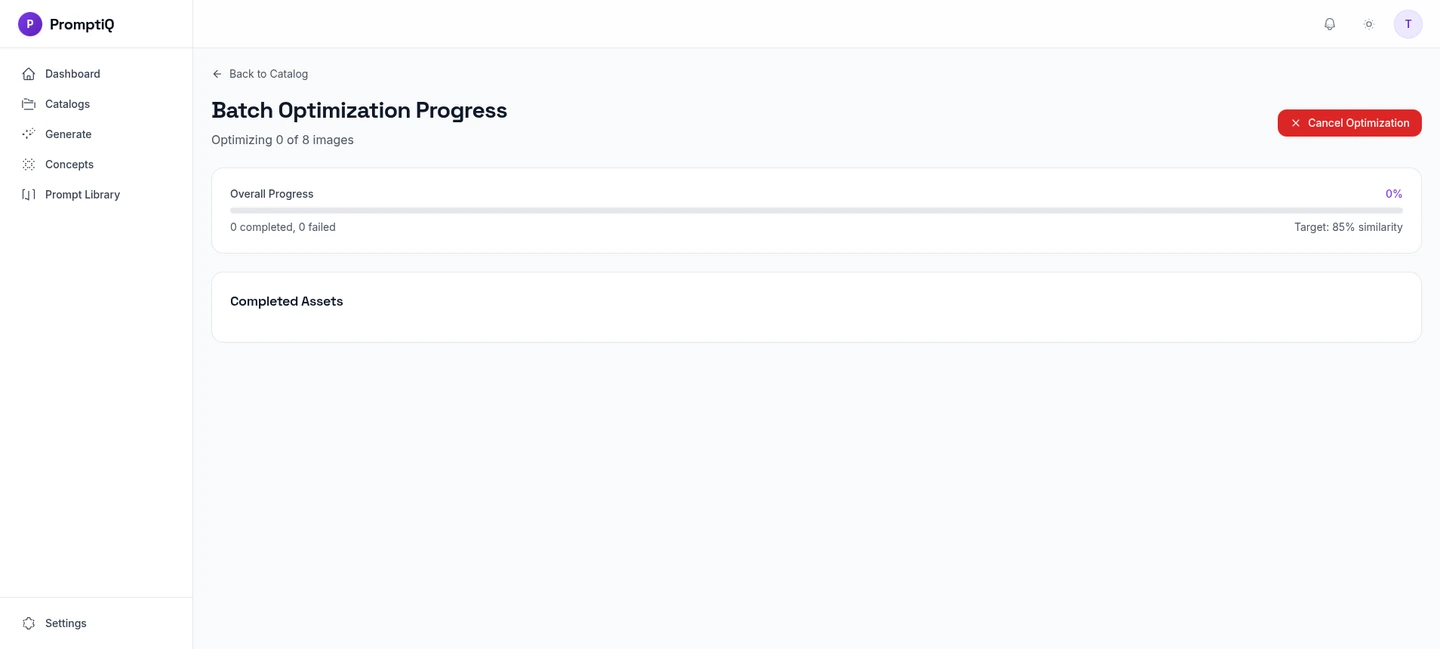
Textual Gradient Descent • Parameter Setup • Inngest OrchestrationPrompt optimization turns raw photos into high-fidelity generative prompts using Textual Gradient Descent (TGD). An AI loop drafts, generates, critiques, and refines prompts iteratively until your target score is achieved.
Step-by-Step Instructions:
- 1.Initiate Optimization: Click Optimize All from the catalog toolbar (or select individual checkboxes and click Optimize Selected).
- 2.Set Iteration Passes: Select 3, 5, 7, or 10 passes (Default: 5). 5 passes provides an optimal balance between convergence speed and compute efficiency.
- 3.Configure Target Brand Fidelity: Set your target score between 0.70 and 1.00 (Default: 0.85, representing 85 on the calibrated scale).
- 4.Launch Background Job: Click Start Optimization. The job is handed off to Inngest durable workflows, routing you to the live progress page.
Monitoring Live Optimization & Score Climbing
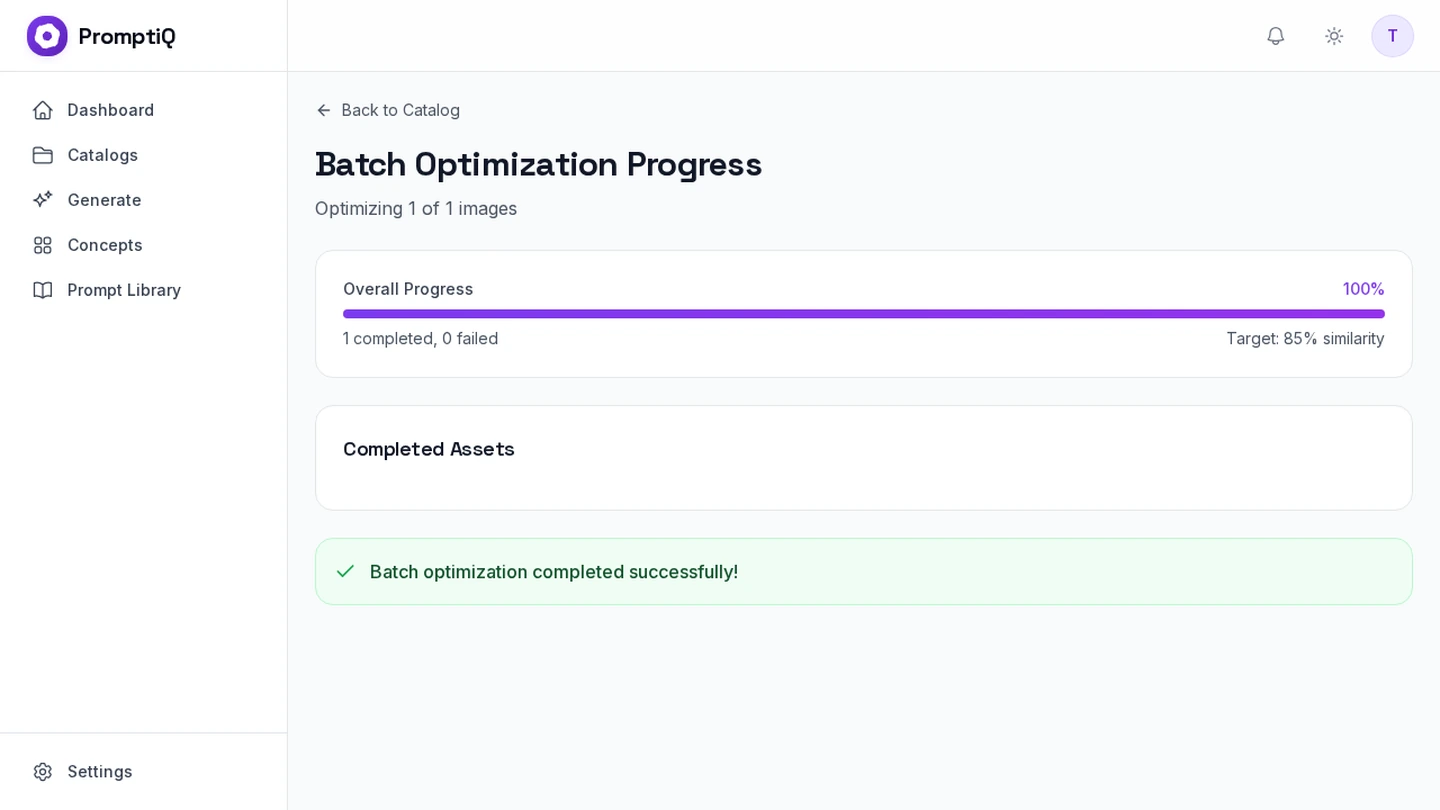
1.2s Real-Time Polling • Climbing Similarity Gauge • Plateau Early-StopThe live progress page (/optimize/[jobId]) connects to the server and polls every 1.2 seconds. You can watch the Similarity Score gauge climb in real time as the critique agent tunes prompt language.
Loop Termination Conditions:
Stops immediately when candidate score hits or exceeds target (≥85).
Stops if score does not improve by >1.0pt over 2 consecutive passes, saving compute cost.
Finalizes after completing the selected number of iteration passes (e.g. 5 passes).
Brand Architecture, Fidelity Calibration & Memory Flywheel
Interpreting the Calibrated Brand Fidelity Score
Calibrated 0–100 Scale • Multi-Dimensional Benchmark • Quality GatingPromptiQ measures brand alignment with a Calibrated Brand Fidelity Score (0–100). This is an objective quality standard ensuring that true stylistic drift lands near zero and authentic brand coherence clears 85+.
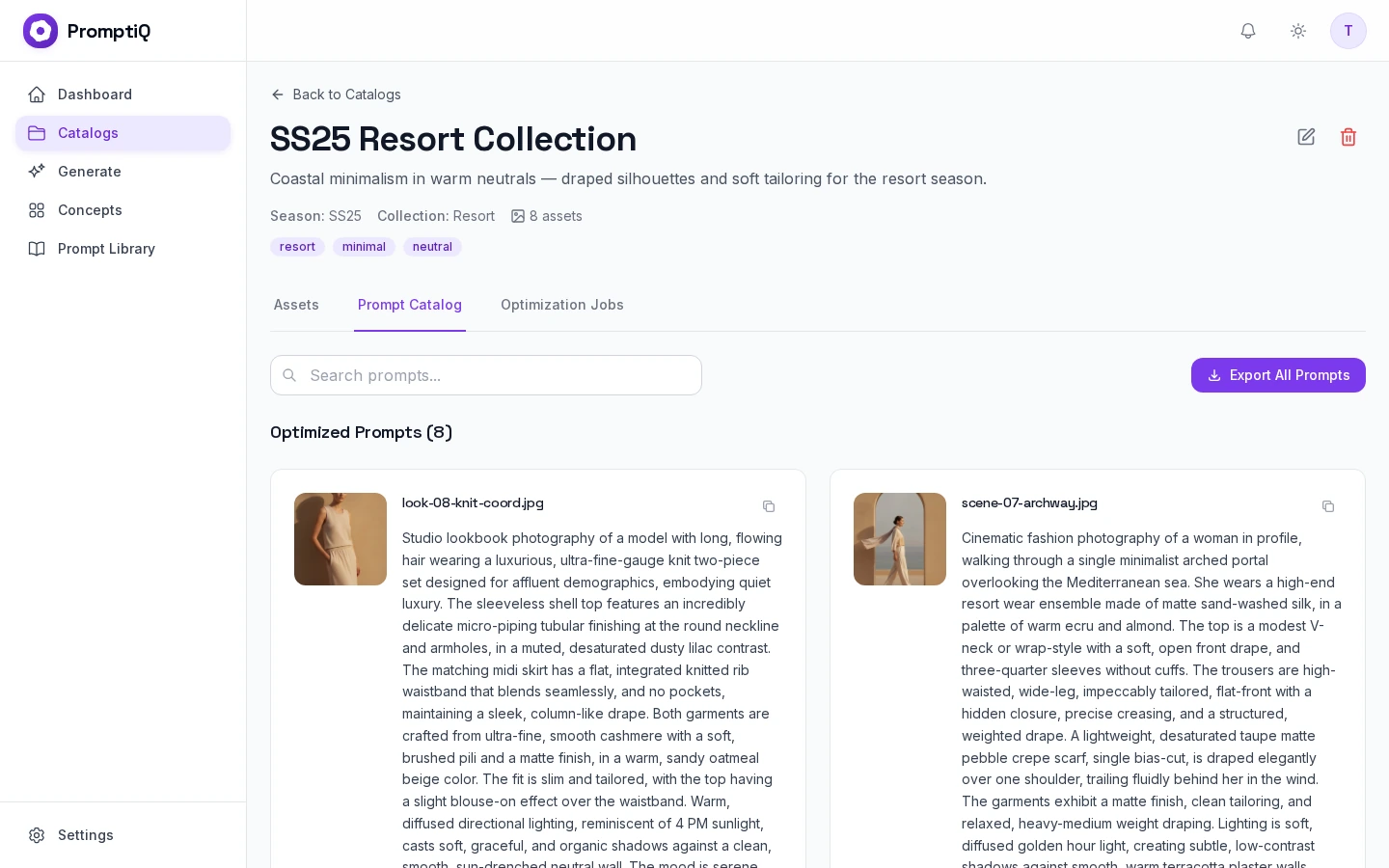
The 3 Calibrated Scoring Bands:
Consistent garment silhouette, authentic color palette, correct fabric texture, and compliance with Brand DNA. Banked automatically to Brand Memory.
Recognizable garment direction but exhibits minor color drift, background noise, or missed drapery nuance. Recommended to re-run with +2 passes.
Significant aesthetic divergence. Check the source photo for background clutter or update Brand DNA avoid-list before re-optimizing.
Brand Fidelity Engine™ Evaluation Standard
PromptiQ calculates each candidate score using multi-dimensional visual benchmarking:
This guarantees generated looks match the specific target product while staying strictly cohesive with your entire collection's visual identity.
Leveraging Brand Memory & Exemplar Flywheel
Visual RAG • Automatic Exemplar Banking • Compounding AccuracyPromptiQ becomes smarter the more you use it. Every prompt that clears the ≥85 On-Brand threshold is automatically saved to your organization's brand_exemplars vector bank.
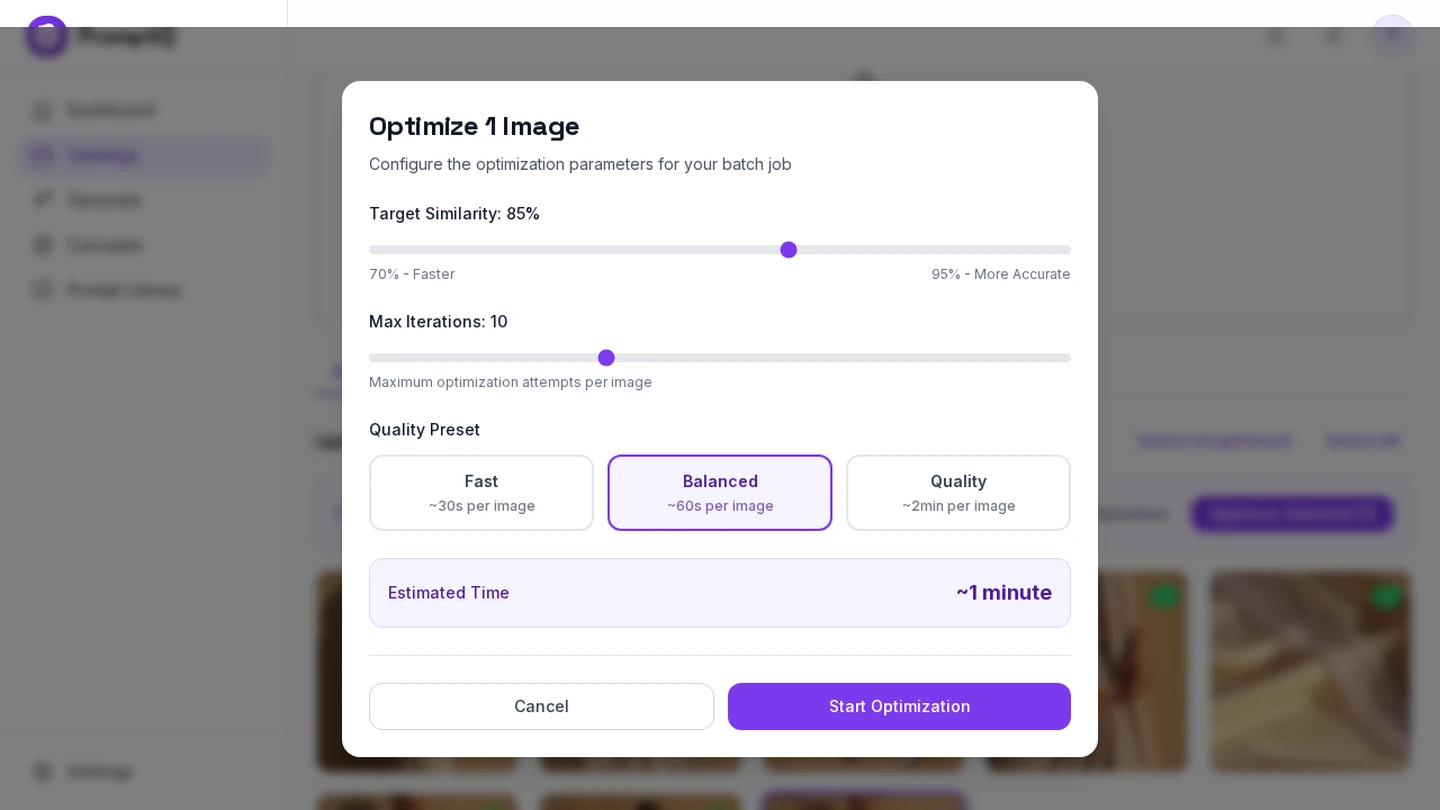
How the Memory Flywheel Operates:
- 1.Automatic Banking: When any asset reaches a Brand Fidelity Score ≥85, its prompt, CLIP vector, and metadata are banked into your private brand memory.
- 2.Visual RAG Retrieval: When you optimize a new asset, PromptiQ searches your memory bank using cosine similarity and retrieves the top-3 most visually related winning prompts.
- 3.Vocabulary Seeding: The LLM seeds its initial draft with proven vocabulary (e.g. your specific lighting terms, fabric descriptors), achieving faster convergence in fewer iterations.
Generating Images from Optimized Prompts & Presets
From Catalog Tab • Quality Presets • Fast / Balanced / QualityWith optimized prompts stored in your catalog, head to the Generate page to create high-resolution campaign imagery using tailored quality presets.
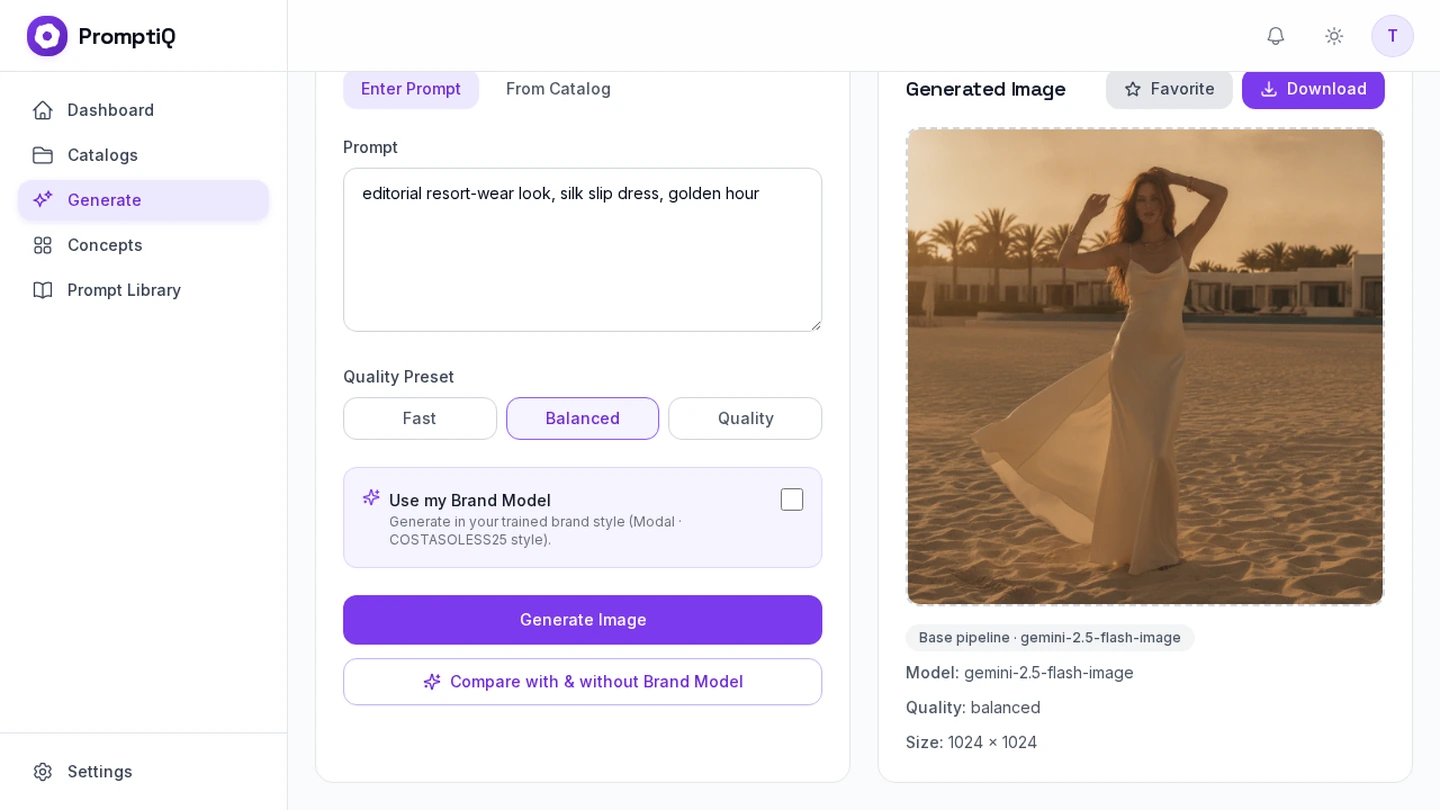
Selecting the Right Quality Preset:
Rapid concept ideation and storyboard drafting. Best for testing multiple creative variants quickly.
Superior garment comprehension and drape nuance. Recommended for lookbook and e-commerce shots.
Maximum textural fidelity and photorealism. Designed for hero campaign banners and print collateral.
Brand Studio — Custom LoRA Fine-Tuning & In-App Serving
Training a Custom Brand Model in Brand Studio
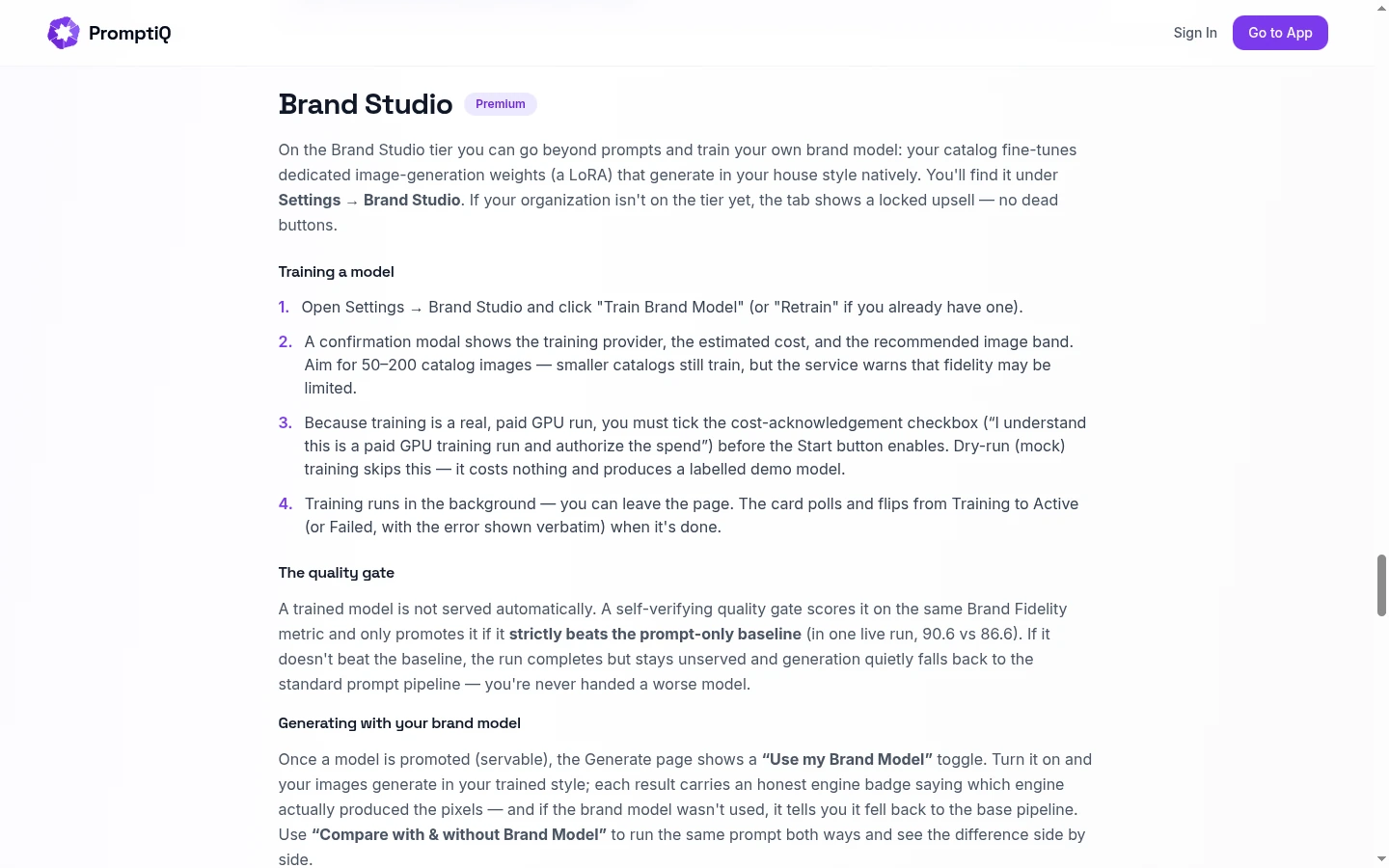
Settings → Brand Studio • Cost Acknowledgement • Quality GateOn the Brand Studio tier, you can go beyond prompt tuning and fine-tune dedicated image-generation weights (a custom FLUX LoRA). Your brand model renders in your house style at the weight level.
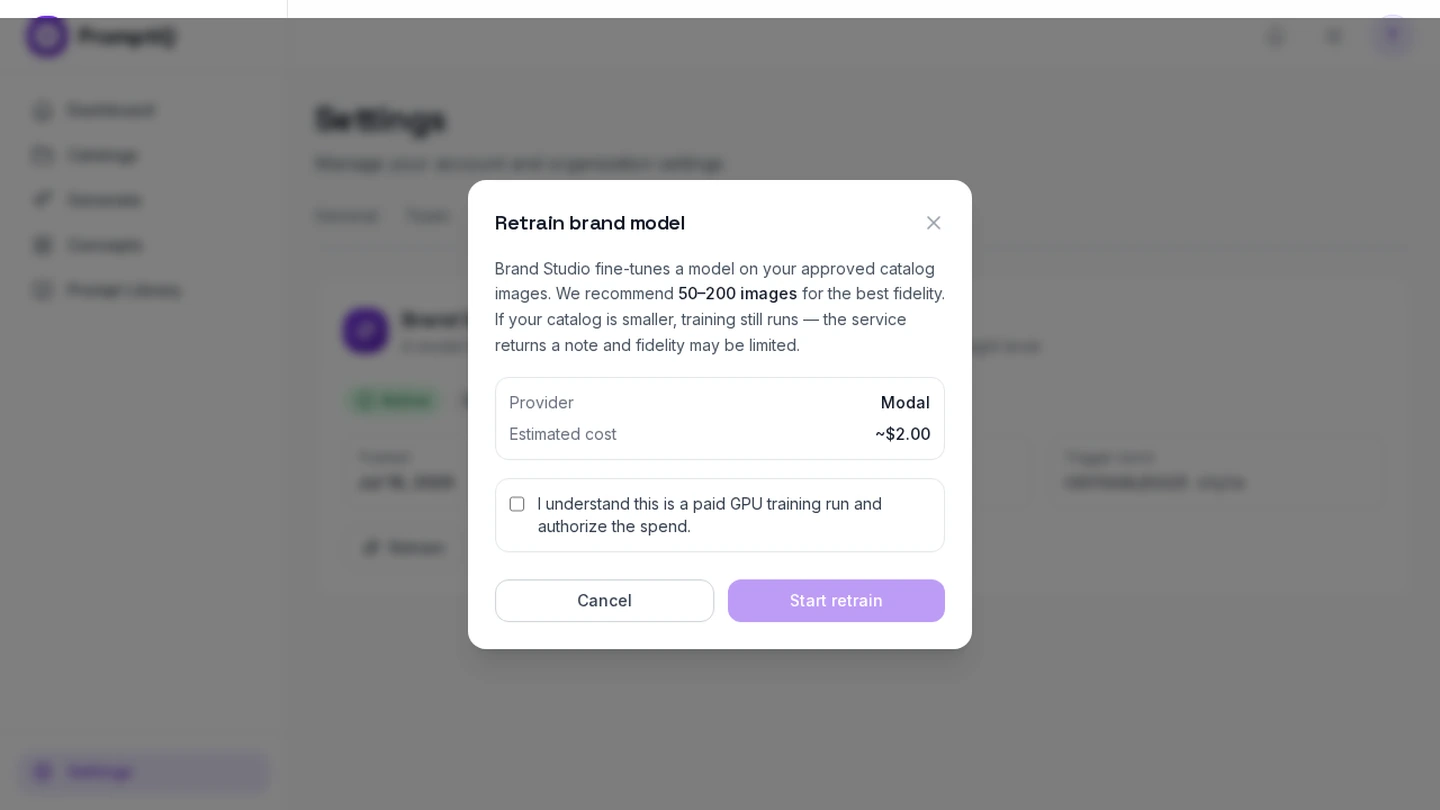
Step-by-Step Training Walkthrough:
- 1.Open Brand Studio: Navigate to Settings → Brand Studio tab.
- 2.Inspect Model Status: Review your current card state (No Model, Training, Active, or Failed).
- 3.Launch Training Modal: Click Train Brand Model (or Retrain). Review the dataset size (50–200 approved images recommended) and estimated GPU cost.
- 4.Authorize Spend: Check the required Cost Acknowledgement checkbox (“I understand this is a paid GPU training run and authorize the spend”).
- 5.Background Processing & Quality Gate: Training runs on Modal GPUs with weights saved to Cloudflare R2. A self-verifying quality gate tests the model against the prompt-only baseline; it is only promoted to production if it strictly beats the baseline score.
Generating with Brand Model & Side-by-Side Comparison
✨ Use Brand Model Toggle • Engine Badges • 2-Up Side-by-Side ViewOnce your Brand Model is active, the Generate page unlocks direct weight-level inference and an interactive 2-up comparison tool to evaluate baseline output versus your trained model.
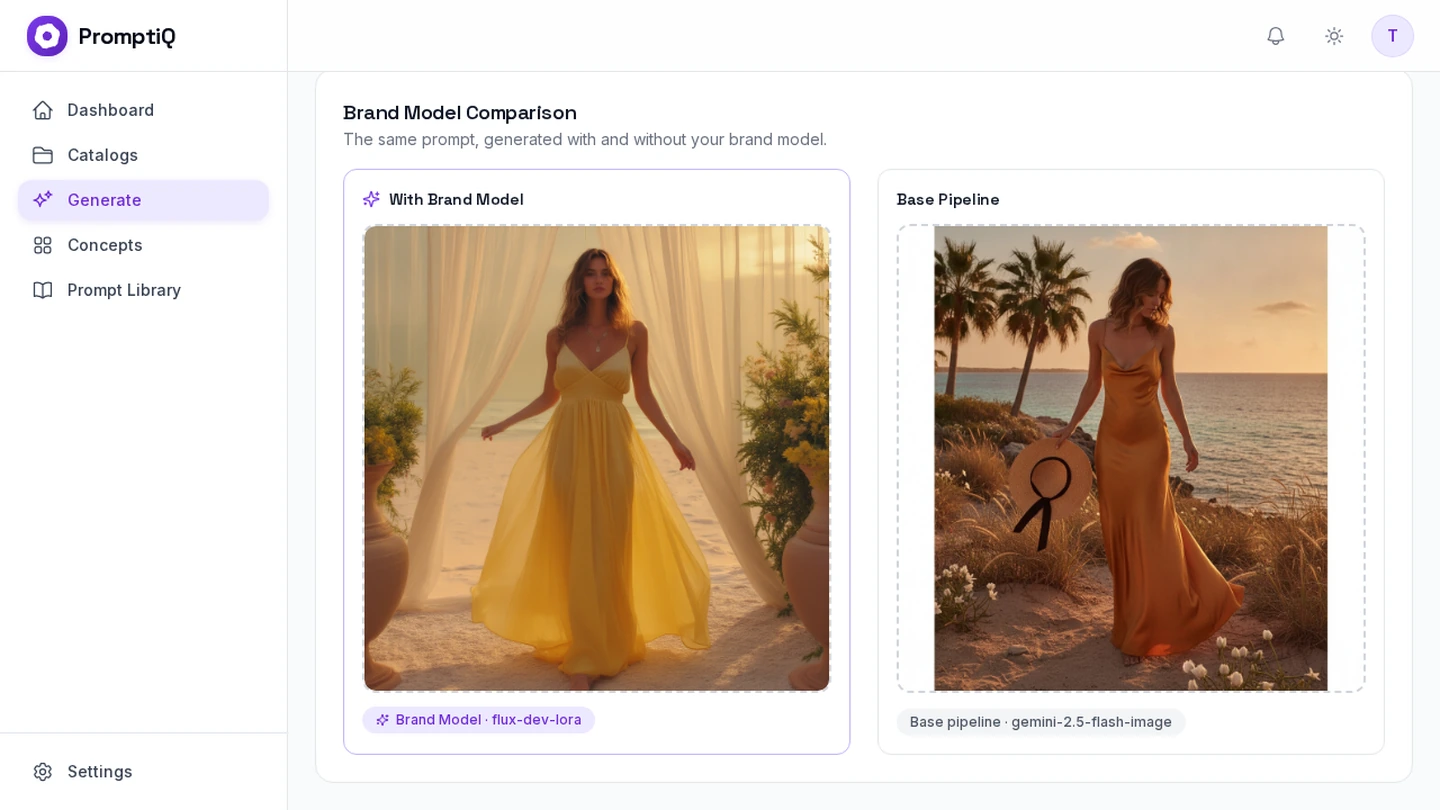
Generation & Comparison Steps:
- 1.Toggle Brand Model: On the Generate page, switch on “✨ Use my Brand Model”.
- 2.Inspect Provenance Badge: Generated images display an engine provenance tag (e.g.
replicate:flux-dev-lora) confirming custom weights produced the pixels. - 3.Run 2-Up Comparison: Click “Compare with & without Brand Model” to run the prompt through both pipelines simultaneously and inspect side-by-side results.
Asset Management, Curation & Prompt Library
Managing Concepts (Lightbox, Notes, & Favorites)
Concepts Gallery • Fullscreen Lightbox • Star Favorites • Note HistoryEvery generation is automatically cataloged in the Concepts gallery. The interactive Lightbox lets you inspect full generation metadata, edit creative notes, star favorites, and trigger sharing.
Lightbox Capabilities:
- Full Technical MetadataInspect exact prompt text, generation engine, quality preset, resolution, and timestamp.
- Creative Notes CRUDAdd, edit, or delete directorial notes directly on the image record for team collaboration.
- Favorite StarringClick the star icon to bookmark hero looks and filter the gallery with the “Favorites only” toggle.
- Instant Re-generationPre-fill the prompt editor directly from the concept to spin up variations.
Organizing Concepts into Curated Collections
Multi-Select Action Bar • Collection Boards • Mood Board CurationCollections let you curate concepts into thematic boards for marketing campaigns, editorial lookbooks, or stakeholder sign-off packages.
How to Build a Curated Collection:
- 1.Multi-Select Concepts: In the Concepts gallery, hover over concept cards and check the selection boxes.
- 2.Add to Collection: Click Add to Collection in the floating bottom action bar.
- 3.Create or Assign: Choose an existing collection or click Create New Collection (enter name and description).
- 4.Manage Board: Open Collections in the sidebar to review, reorder, or export your curated set.
Managing the Prompt Library
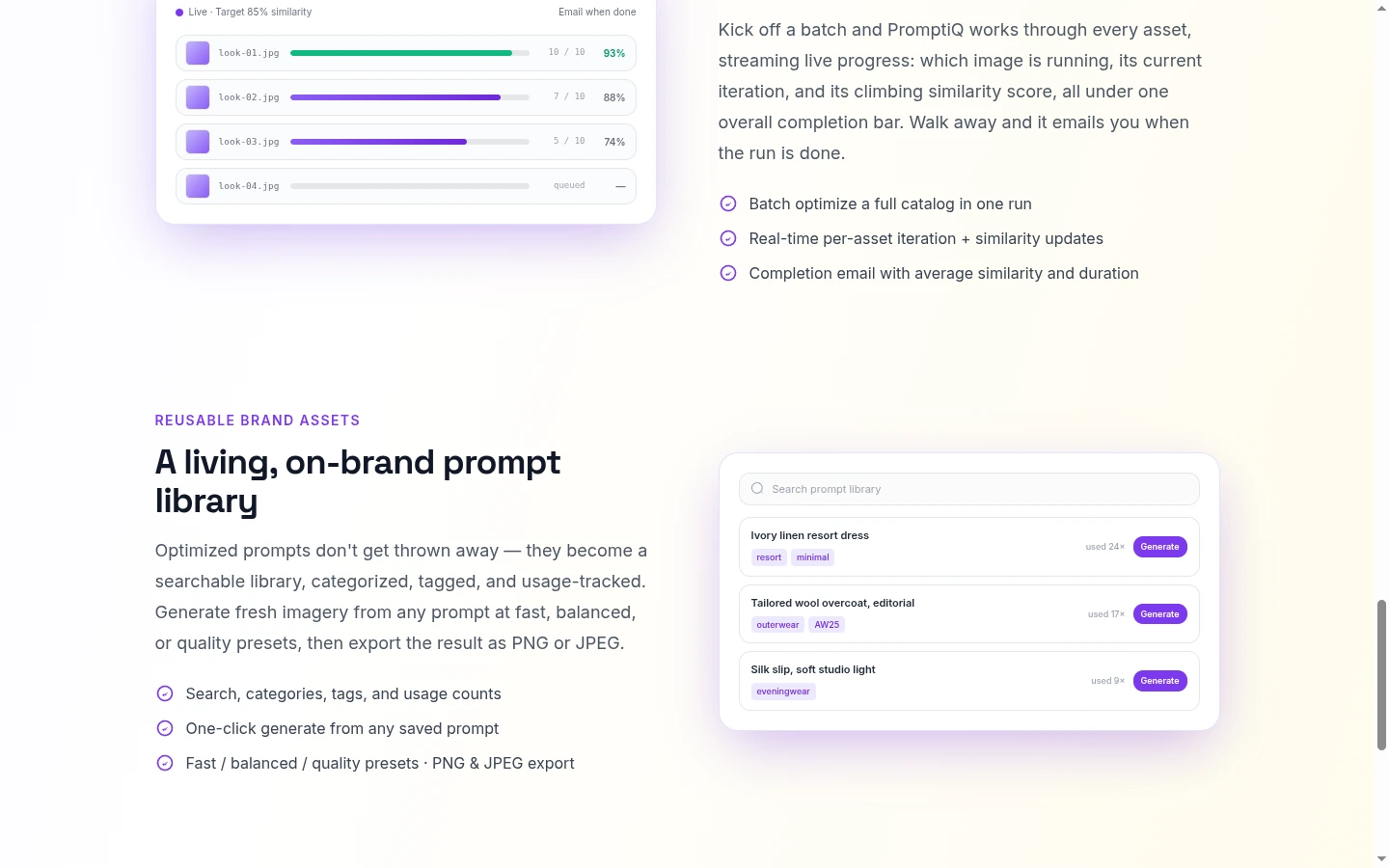
Prompts Workspace • Category Filters • Tag Search • Usage TrackingThe Prompt Library is your organization's repository of standalone creative starting points. It tracks team usage counts, category tags, and allows one-click generation pre-fills.
Prompt Library Best Practices:
- 1.Save Reusable Directives: Click New Prompt to store high-performing baseline structures with categories (e.g.,
Editorial,Lookbook,Macro Detail). - 2.Filter & Search: Search by title, keyword, or tag to instantly locate proven styling formulas across your team.
- 3.One-Click Generation: Click Generate on any card to load the prompt directly into the Generate studio and increment its team usage counter.
Collaboration, Workspace Settings & Public Sharing
Public Sharing & Stakeholder Reviews
Zero-Login Sharing • /share/[id] • Read-Only Banner • View AnalyticsShare concepts with external creative directors, clients, or agency partners without requiring them to create an account or sign in.
Sharing Workflow:
- 1.Generate Share Link: In the Lightbox, click Share. A cryptographically unique share URL is generated.
- 2.Distribute Link: Send the link (e.g.
https://www.promptiq.cloud/share/[token]) to external reviewers. - 3.Recipient Experience: Viewers see a clean presentation with high-res imagery, generation parameters, and an amber Shared View (Read-Only) banner. Each unique access increments view analytics.
Workspace Settings, Team Management, & API Usage
Settings Tabs • General • Team • Brand Studio • Billing • API UsageThe Settings workspace provides comprehensive administration across 5 dedicated tabs, allowing you to configure defaults, invite colleagues, manage LoRA models, and monitor GPU cost burn.
- • UI Theme preference (Light, Dark, System)
- • Default Target Brand Fidelity (0.70–1.00)
- • Default Max Optimization Iterations (3–10)
- • Invite team members via email
- • Assign roles (Designer or Viewer)
- • Track pending invitations & active seats
- • Manage custom LoRA model lifecycle
- • Trigger paid training & view weights
- • Enforces 14-day auto / 1-day manual caps
- • Subscription plan tier and seat counts
- • Upgrade options to unlock Brand Studio
- • Invoices and payment methods
- • Total image generations and LLM token consumption
- • Provider breakdown (Together AI, Google Gemini, Replicate)
- • Real-time monthly GPU spend tracking
Frequently Asked Questions
Common questions regarding scoring benchmarks, optimization mechanics, and model training.
Q:How long does prompt optimization take?
A single asset at 5 iterations takes approximately 1–3 minutes. A full catalog of 10 assets runs in parallel and completes in 5–12 minutes. The progress monitor updates in real time with 1.2-second polling.
Q:What Brand Fidelity Score should our creative team aim for?
Aim for 85 or higher — that is the calibrated on-brand target where consistent color palette, garment silhouette, and styling converge. 70–84 indicates close alignment needing minor prompt refinement. Below 60 indicates stylistic drift.
Q:Why did our optimization stop before the maximum iterations?
The loop terminates early if it clears the target score (≥85) OR if the score plateaus (<1.0pt gain over 2 consecutive passes). This early-stop feature prevents unnecessary GPU costs when further passes won't improve fidelity.
Q:How does Brand Memory improve our results over time?
Every winning prompt scoring ≥85 is banked into brand_exemplars. On future runs, Visual RAG retrieves the top-3 most similar exemplars to seed proven fashion vocabulary into the initial prompt draft.
Q:What is the difference between Prompt Optimization and Brand Studio?
Prompt optimization tunes language prompts against your Brand Fidelity target. Brand Studio (premium) fine-tunes dedicated LoRA model weights on your catalog so images render in your house style natively at the weight level.
Q:Can team members edit prompts before generating images?
Yes. In the Generate → 'From Catalog' tab, clicking any optimized prompt pre-fills the prompt editor where you can freely adjust styling, angles, and details before generating.
Q:What image formats are supported for catalog uploads?
JPG and PNG formats are supported up to 100 images per catalog. Product photography with clean, well-lit backgrounds yields the highest CLIP embedding accuracy.
Q:Can we share concepts with external clients who don't have accounts?
Yes. Use the Lightbox 'Share' button to create a public URL (e.g. promptiq.cloud/share/[token]). External reviewers see a high-res read-only view with zero login required.
Ready to Build Your Brand-Aligned AI Pipeline?
Log in to your PromptiQ workspace to start ingesting catalogs, optimizing prompts, and exploring custom brand models.